Monday, August 18, 2014

Add image alter tags for best SEO practice

We all the Blogger or Website Designer know that SEO (Search Engine Optimization) is very important for a blog or website. Because, we all want to reach our Website or Blog at the top of all Search Engines. So, we most often use some tips and tricks to reach our blog or website at the top of all. I think if we write the best content then it will normally reach at the top. However, you may also use some basic tricks to reach your Blog or Website at the top. Image Alter Tag is one of the best tricks for Search Engine Optimization (SEO). The webmasters always use Image Alter Tag. You can also use images depending on the Blog's Content so that you can use Image Alter Tag. Image Alter Tag plays a very important role in Search Engines. Lets see how to add Image Alter Tags.

SEO tricks,image alter tags,alter tags

Adding Image Alter Tags by Coding


 Step 01  Introduction with the Codes Structure for an Uploaded Image
When you will upload an image as a blogger blog user then some codes like below will be generated automatically. You will found the codes by clicking on the button HTML.

<a href="https://blogger.googleusercontent.com/img/b/R29vZ2xl/AVvXsEiw7I1w9CFS-U2hD1rdxholeMfzQlydrBndnGiimFVJrzNfx58YRFlEn5U743yi0xQhHXrfGJed4dMm0NybvAWJWm1CvAmNlKVh6Y02hG4hbCh5jImZakUbkS-li_Pli0z_sTgL6BU3bMs/s1600/SEO-Image-alter-tag.png" imageanchor="1" style="margin-left: 1em; margin-right: 1em;"><img border="0"  src="https://blogger.googleusercontent.com/img/b/R29vZ2xl/AVvXsEiw7I1w9CFS-U2hD1rdxholeMfzQlydrBndnGiimFVJrzNfx58YRFlEn5U743yi0xQhHXrfGJed4dMm0NybvAWJWm1CvAmNlKVh6Y02hG4hbCh5jImZakUbkS-li_Pli0z_sTgL6BU3bMs/s320/YOUR-IMAGE-NAME.png" width="320" height="265" /></a>

 Step 02  Add an Image According to the Content
Firstly, you have to add an image to your Blog Post. If you make ready a Contextual Post, then add an image depending on the Article. Place the image wherever you want to show.

 Step 03  Find out the Codes of the Image
Click on HTML and press Ctrl + F, a text input box will open. Now type img into the text input box and press the Enter Key. You will found the set of codes responsible for the image.

 Step 04  Replace the Codes with Image Alter Tag
Now you have to replace the Red Colored Codes with the Image Alter Tag <img alt="KEYWORD,  KEYWORD ,  KEYWORD ,  KEYWORD ,  KEYWORD".

<a href="https://blogger.googleusercontent.com/img/b/R29vZ2xl/AVvXsEiw7I1w9CFS-U2hD1rdxholeMfzQlydrBndnGiimFVJrzNfx58YRFlEn5U743yi0xQhHXrfGJed4dMm0NybvAWJWm1CvAmNlKVh6Y02hG4hbCh5jImZakUbkS-li_Pli0z_sTgL6BU3bMs/s1600/SEO-Image-alter-tag.png" imageanchor="1" style="margin-left: 1em; margin-right: 1em;"><img border="0" src="https://blogger.googleusercontent.com/img/b/R29vZ2xl/AVvXsEiw7I1w9CFS-U2hD1rdxholeMfzQlydrBndnGiimFVJrzNfx58YRFlEn5U743yi0xQhHXrfGJed4dMm0NybvAWJWm1CvAmNlKVh6Y02hG4hbCh5jImZakUbkS-li_Pli0z_sTgL6BU3bMs/s320/YOUR-IMAGE-NAME.png" width="320" height="265" /></a>

 Step 05  Use the Keywords Depending on the Article
So the codes will look like the codes given below into the box. Now replace the words "KEYWORD" with the expected Keywords. But never use the same Keyword for more than three times.

<img alt="KEYWORD,  KEYWORD,  KEYWORD" src="https://blogger.googleusercontent.com/img/b/R29vZ2xl/AVvXsEiw7I1w9CFS-U2hD1rdxholeMfzQlydrBndnGiimFVJrzNfx58YRFlEn5U743yi0xQhHXrfGJed4dMm0NybvAWJWm1CvAmNlKVh6Y02hG4hbCh5jImZakUbkS-li_Pli0z_sTgL6BU3bMs/s320/YOUR-IMAGE-NAME.png" width="320"  height="265" /></a>

...::Image Alter Tag::...


Adding Image Alter Tags Manually


 Step 01  Click on the Uploaded Image
Normally click on the uploaded image, a pop up menu will appear. Now click on Properties from the menu, then a pop up window will open like the image given below.
 Step 02  Provide the Image Title into the Text Input Box named title text
There are two text input boxes named title text and alt text. You have to provide a title for the image what will appear after publishing the image when someone will hover the mouse on the image. Title should be according to the article or post.

 Step 03  Provide the Image Alter Text into the Text Input Box named alt text
Now you have to provide some keywords into the Text Input Box named alt text. The keywords should be comma separated as shown on the above image.


20+ Questions and Answers about Computer Programming


Q 01: Write down the abbreviation of ANCI.
Ans: The abbreviation of ANCI is American National Standards Institute.

Q 02: C language id designed by and ... programmers.
Ans: for

Q 03: Who was invented C++?
Ans: C++ wad invented by Bjarne Stroustrup.

Q 04: When C++ was invented?
Ans: C++ was invented in 1979.

Q 05: The first name of C++ was ...
Ans: The first name of C++ was C with Classes.

computer programming,first computer program,programming job

Q 06: When C with Classes was renamed to C++?
Ans: C with Classes was renamed to C++ in 1983.

Q 07: C was developed depending on the programming language ...
Ans: C was developed depending on the programming language B.

Q 08: C++ programming language was standardized in ...
Ans: 1997

Q 09: Java was initially called ...
Ans: Java was initially called Oak.

Q 10: When Oak was renamed to Java?
Ans: Oak was renamed to Java in 1995.

Q 11: What do you mean by JVM?
Ans: JVM is the short form of Java Virtual Machine.

Q 12: What is JIT?
Ans: The abbreviation of JIT is Just In Time and it's a Java Compiler.

Q 13: Is HTML a programming language?
Ans: No, HTML is not a programming language.

Q 14: All computer programs consist of ... elements. They are ...
Ans: All computer programs consist of two elements. They are code and data.

Q 15: What do you mean by JDK?
Ans: The abbreviation of JDK is Java Developer's Kit. That means it's a Java Development Kit for the programmer.

Q 16: Who is the first computer programmer?
Ans: Augusta Ada Byron (Commonly known as Ada Lovelace) is the first computer programmer.

Q 17: On which computer Augusta Ada Byron worked?
Ans: Augusta Ada Byron worked on Charles Babbage's Analytical Engine.

Q 18: Which one is the first programming languages?
Ans: Lambda Calculus is the first programming language.

Q 19: Who is the inventor of Lambda Calculus?
Ans: Alonzo Church invented Lambda Calculus.

Q 20: When Lambda Calculus was invented?
Ans: Lambda Calculus was invented in 1930.


Sunday, August 17, 2014

20+ Questions and Answers about the history of Website Designing


As a website designer or developer we should know them who has sacrificed a lot and invented new services for we all. Tim Berners-Lee invented the Hypertext Markup Language (HTML) to share content with others. Today the field of website designing is so developed, but Berners-Lee was the first who started it. Let's know some basic questions and their answers about the history of website designing.

Q 01: What is the abbreviation of HTML?
Ans: The abbreviation of HTML is Hypertext Markup Languages.

Q 02: Write down the abbreviation of CSS.
Ans: The abbreviation of CSS is Cascading Style Sheet.

Q 03: The latest version of HTML is...
Ans: The latest version of HTML is HTML5
web designing, job interview, job questions

Q 04: What do you mean by IETF?
Ans: IETF means Internet Engineering Tast Force.

Q 05: The abbreviation of www is...
Ans: The abbreviation of www is World Wide Web.

Q 06: What is the abbreviation of DNS?
Ans: The abbreviation of DNS is Domain Name Server.

Q 07: Write down the full meaning of http
Ans: The full meaning of http is Hypertext Transfer Protocol.

Q 08: Domain name is a converted form of ...
Ans: Domain name is a converted form of IP Address.

Q 09: What is the abbreviation of SEO?
Ans: The abbreviation of SEO is Search Engine Optimization.

Q 10: Who is the inventor of www?
Ans: Berners-Lee is the inventor of www (World Wide Web).

Q 11: What do you mean by W3C?
Ans: W3C means World Wide Web Consortium.

Q 12: Who is the founder of W3C?
Ans: Berners-Lee is the founder of W3C.

Q 13: What do you mean by NCSA?
Ans: NCSA is the short form of National Center for Supercomputing Applications.

Q 14: What is Mosaic?
Ans: Mosaic is a web browser developed by NCSA.

Q 15: When Mosaic Browser was released?
Ans: Mosaic browser was released in 1993.

Q 16: What is Netscape?
Ans: Netscape is a US. Computer Services Company.

Q 17: The web browser released by Netscape is...
Ans: Netscape's released web browser is Netscape Navigator.

Q 18: Who is the inventor of Netscape?
Ans: Marc Andreessen is the inventor of Netscape.

Q 19: Which one is the first web browser?
Ans: The first web browser is World Wide Web.

Q 20: Who was invented World Wide Web?
Ans: Tim Berners-Lee is the inventor of World Wide Web.

Q 21: World Wide Web was later renamed as ....
Ans: World Wide Web was later renamed as Nexus.

Q 22: When World Wide Web was released?
Ans: World Wide Web was released on 25th Dec, 1990.

How to solve the http error changing the DNS server address


Sometimes you may fail to visit a website with .blogspot sub-domain. Generally it happens when you are using the internet service of a phone company like Grameenphone, ROBI, Teletalk etc. Personally I have faced this problem during visiting my own blog www.dakbox.blogspot.com. Then I configured my Computer's network properties to solve this problem. To configure your network properties, just follow the steps given below.

 Step 01  Disconnect the active connection
First of all you need to disconnect your Active Internet Connection. To disconnect your Internet Connection, you need to go to control panel. There you will found Network Connection icon, double click on this. A new window will open, double click on the active connection. For example: GP-INTERNET for Grameenphone Internet Users. It may be also Banglalink, Qubee, Banglalion etc.
DNS server,http error,server error
 Step 02  Provide the DNS server address as given below
After clicking on the Internet Connection another window will open. Then you need to click on Properties. Now navigate to Networking tab and again click on properties. Now check the box where is written Use the following DNS server addresses. Now provide the address as like as given below ....
Preferred DNS server: 4.2.2.8 or 2.2.2.2
Alternate DNS server: 4.2.2.5 or 8.8.8.8

 Step 03  Save the settings and visit all websites
Now save the settings and re-connect your Internet Connection again. Hope you will be now able to visit your all expected websites.


20+ Questions and Answers about HTML


HTML is a markup language, we use to create webpages. There are lots of tags we have to use to represent our content on the web in different style. For example: we have to use the <b> tag to represent any text as bold.

Let's know the basic questions and their answers about HTML. You may face these questions for a job interview. As a web developer you should know the answers of the questions below. 

Q 01: What is the abbreviation of HTML?
Ans: The abbreviation of HTML is Hypertext Markup Language.

Q 02: What do you mean by HTML?
Ans: HTML is a markup language, that we use to create webpage. HTML is the basic primary level language that is must to create a webpage.

Q 03: Is HTML is a programming language?
Ans: No, HTML is not a programming language.

Q 04: Write down the codes to construct a simple webpage.
Ans: The codes given below will construct a simple webpage...
<!DOCTYPE html>
<html lang="en">
 <head>
  <meta charset="UTF-8">
  <title>iDhali</title>
 </head>
 <body>
  <h1>This is my first webpage</h1>
  <p>This is a Paragraph</p>
 </body>
</html>
Job Interview,HTML.Webpage Designing

Q 05: Write down the codes to construct a table of two column.
Ans: The codes to construct such a table is given below...
<table>
   <tbody>
      <tr>
         <td>Column1</td><td>Comumn</td>
      </tr>
   </tbody>
</table>

Q 06: Write down the extension of a html file.
Ans: The extension of a html file may be .htm or .html

Q 07: What is the full meaning/abbreviation of W3C?
Ans: The full meaning of W3C is World Wide Web Consortium.

Q 08: The latest version of HTML is...
Ans: The latest version of HTML is HTML5.

Q 09: When HTML5 was released?
Ans: HTML5 was released in 2008.

Q 10: Which tag we have to use for a line break?
Ans: We need to use <br/> tag for line break.

Q 11: How many headings we use in HTML? Write them.
Ans: We use six heading in HTML. They are...
<h1>, <h2>, <h3>, <h4>, <h5> and <h6>

Q 12: Write down the codes to create a link.
Ans: The codes to create a link is given below...
<a href="www.idhali.com">The Text</a>

Q 11: Write down the codes to show a mathematical rule on a webpage: (a+b)2 = a2+2ab+b2
Ans: The codes to show the rule on a webpage is given below...
(a+b)<sup>2</sup> = a<sup>2</sup>+2ab+b<sup>2</sup>

Q 14: How you will show the following text on a webpage: logaa2=2logaa
Ans: Actually we need to use both Subscript and Superscript tags here to format the text like this. The codes are given below...
log<sub>a</sub>a<sup>2</sup>=2log<sub>a</sub>a

Q 15: How we can note something or write a comment into the HTML codes for further understanding about our work?
Ans: We can make a comment using the codes given below.
<!-- Your Comment Here -->

Q 16: What do you mean by the file extension .hta?
Ans: The file extension .hta is used for the HTML Application File.

Q 17: What do you mean by IETF?
Ans: IETF means Internet Engineering Task Force.

Q 18: Who created HTML?
Ans: Berners-Lee created HTML.

Q 19: When HTML became an international standard?
Ans: In 2000 HTML became an international standard.

Q 20: Write down the abbreviation of WHATWG.
Ans: The abbreviation of WHATWG is Web Hypertext Application Technology Working Group.

Q 21: What did WHATWG do?
Ans: WHATWG developed HTML5 from 2004 to 2008.

Q 22: When the initial release of HTML was occurred?
Ans: The initial release was occurred in 1993.

Q 23: When the latest release of HTML was happened?
Ans: The latest release of HTML was happened on 4th February, 2014 as the version HTML 5.0

» Let's start a HTML course here...


Saturday, August 16, 2014

20+ Questions and Answers about Computers and Different Devices


Q1: What is the abbreviation of HDD?
Ans: The abbreviation of HDD is Hard Disk Drive.

Q2: What is the abbreviation of FDD?
Ans: The abbreviation of FDD is Floppy Disk Drive.

Q3: Write down the full meaning of CD.
Ans: The full meaning of CD is Compact Disk.

Q4: The full meaning of DVD is....
Ans: The full meaning of DVD is Digital Versatile Disk.

Q5: What will happen after replacing the CMOS Battery?
Ans: The date and time will be reset after replacing the CMOS Battery.

Q6: Write down the basic difference of a CD-ROM and a CD-WRITER.
Ans: A CD-ROM can only read the CD's but a CD-WRITER can read a CD and it can also write a CD.
Job Interview,Different Computer Devices

Q7: What is the full meaning of eMail?
Ans: The full meaning of eMail is Electronic Mail.

Q8: What is the latest version of Bluetooth till now?
Ans: The latest version of Bluetooth is Bluetooth V4.0

Q9: The last released Operating System for Apple Computer is...
Ans: Mac OS Yosimeti

Q10: How much free storage is Google providing against a Google Account?
Ans: Google is providing 15 GB free storage against a Google Account.

Q11: The last released computer monitor type is...
Ans: OLED

Q12: What is the abbreviation of CRT?
Ans: The abbreviation of CRT is Cathode Ray Tube.

Q13: The full meaning of LCD is...
Ans: The full meaning of LCD is Liquid Crystal Display.

Q14: The abbreviation for LED will be...
Ans: The abbreviation for LED will be Light Emitting Diode.

Q15: What is the abbreviation of IBM?
Ans: The abbreviation of IBM is International Business Machine.

Q16: Will the computer system boot without RAM?
Ans: Yes, the Computer System will boot without any RAM.

Q17: What will happen if there is no any RAM installed in a Computer System?
Ans: The computer system will boot up without any RAM, but there will not appear anything in the display.

Q18: The full meaning of RAM is...
Ans: The full meaning of RAM is Random Access Memory.

Q19: What is the abbreviation of ROM?
Ans: The abbreviation of ROM is Read Only Memory.

Q20: What is the full meaning of GPU?
Ans: The full meaning of GPU is Graphics Processing Unit.

Q21: The abbreviation for CPU is...
Ans: The abbreviation for CPU is Central Processing Unit.


Friday, August 15, 2014

20+ questions and answers about Networking and Internet you should know


Twenty questions and answers on internet and related topics are given below for you all. These questions you will face in job interview or written exams. The questions are very simple and easy. Lets try them and leave a comment informing if it is helpful or not for you.

1. What is the abbreviation(full meaning) of ISP?
-The abbreviation of ISP is Internet Service Provider

2. What is the abbreviation of TCP?
-The abbreviation of TCP is Transmission Control Protocol

3. What is the abbreviation of IP?
-The abbreviation of IP is Internet Protocol
4. What is the abbreviation of ISDN?
-The abbreviation of ISDN is Integrated Services Digital Network

5. What is ISDN?
-ISDN is a way of sending several data through a media at a time using digital telephone line. It was established in 1972 and so effective for small offices or home.

6. Lynx, Netscape and Mosaic are ...
-Three web browser

7. What do you mean by the follwing extension of domain?
.com -Commercial Site
.edu -Educational Site
.gov -Government Site
.mil -Military Site
.org -Non-profit Organization
.tv -Television Site
.in -Indian Site
.au -Austrilian Site
.bd -Bangladeshi Site
.net -Network Provider
.biz -Business Site

8. What is the abbreviation of http?
-The abbreviation of http is Hypertext Transfer Protocol

9. What is the abbreviation of www?
-The abbreviation of www is World Wide Web

10. What is the abbreviation of URL?
-The abbreviation of URL is Uniform Resource Locator

11. Write down the valid format of a URL
-http://www.idhali.com

12. Which function key you will use to refresh or reload a webpage?
-The F5 function key I will use

13. Which shortcut key you may use to browse a website like www.idhali.com without typing www and .com?
-I need to press Ctrl+Enter Key after typing idhali into the address bar.

14. Write down the shortcut way of browsing www.facebook.com
-I need to type f only into the address bar and then if I press Ctrl+Enter Key, I will be able to visit the webpage www.facebook.com

15. How to visit a site like www.idhali.net without typing www and .net?
-I need to type idhali into address bar and then I need to press Alt+Enter Keys together.

16. The shortcut key you need to press to enable full screen in Google Chrome Browser.
-I need to press F11 function key to enable full screen in Google Chrome Browser.

17. How to open a new incognito window in Google Chrome Browser?
-By pressing Ctrl+Shift+N keys at a time anyone can open a new incognito window.

18. How to open  a new Private Window in Mozilla Firefox Browser?
-Need to press Crl+Shift+P to open a new private window.

19. How to enable full screen mode in Mozilla Firefox Browser?
-Need to press F11 function key to enable full screen mode in Mozilla Firefox Browser.

20. The web browser of Apple Computer is ....
-Safari


Wednesday, August 13, 2014

Adding Snow Storm effect to a Webpage easily


At first download the example file from here. After downloading you will get a RAR File. So Extract the RAR file first. There you will found a .html file named FairytipsSnowStorm.html inside the folder. Open this .html file on a browser software like chrome, firefox, safari etc. This is the example of Snow Storm. Move your mouse to and fro on the webpage. Hope you have noticed that the Snow Storm starts from the same side of the mouse pointer. That means if you keep your mouse pointer at the right side then the Snow Storm will start from the right side. If you again keep your mouse pointer in the left side then the Snow Storm will start from the left side. This Snow Storm is created with JavaScript Codes. I haven't used any image to make this Snow Storm. Follow the steps below to add the Snow Storm to a webpage.

 Step 01  Add the JavaScript before the closing </body> tag
You have already got a .html file named FairytipsSnowStorm.html. There you will also get a JavaScript file named Snowstorm.js. No follow the codes given bellow into the box.
<html>
<head>
<body bgcolor="#1E5B82">
YOUR CONTENT HERE
<SCRIPT type="text/javascript" src="snowstorm.js"></script>
</body>
</head>
</html>
The above codes are to create a simple webpage as you have already got one named FairytipsSnowStorm.html. I have added a single line <SCRIPT type="text/javascript" src="snowstorm.js"></script>. I have added this line just before the </body> tag. You have to also add this line before the closing </body> tag of your webpage.
 Step 02  Keep the Snowstrom.js file into the same folder
Look, there is a .js file into the FairytipsSnowstorm folder and there is also the Snowstorm.js JavaScript file in the same folder with the FairytipsSnowStorm.html file. So, you have to also keep this Snowstorm.js file into the same folder with your webpage. That's all about adding Snow Storm to your webpage. The background color should be a deep color for the better result. If you keep the background color white then you won't see any snow storm as the color of snow is also white. :)


Monday, August 11, 2014

Compile the assembly language programs in the latest windows pc


Today computers with windows xp operating system is rare. But we need a computer installed windows xp to run MASM Assembler 8086. That's why we will use DOSBox to run MASM Assembler in our Windows 7 and/or Windows 8.1 PCs. Let's follow the steps below to download DOSBox and to know how to use it.

 Step 01  Download DOSBox first
First of all you need to download DOSBox. To download DOSBox simply click here.

 Step 02  Install DOSBox now
After downloading you will get a zip file. Now unzip it and install DOSBox as usual. The installation process is too easy.
 Step 03  Download the 8086 folder and keep it to the C drive
Now download the folder 8086 from here. This one is also a zip file. After downloading, unzip it and keep it to the directory C:

 Step 04  Launch DOSBox and mount the c drive
Now run the DOSBox and type mount c c:/8086 into the command prompt. Then press the Enter Key, you will get a message like Drive c is mounted as local directory c:/8086

Now your computer system is ready to compile and run the programs written in Assembly Language.

1. Lets write the hello world program in assembly language and run it using DOSBox

Advertisement

Sunday, August 10, 2014

What is thumbs.db file, how to delete them?


Some computer users are confused about thumbs.db system file. Some people thinks that Thumbs.db is a Computer Virus! But it's not! It's a System File of windows operating system only and it's called thumbnails cache file. This system file is used to store the thumbnail images for Windows Explorer's Thumbnail View. However one may be free from thumbs.db file stopping create it. You just need to follow the easy steps given below to be free from thumbs.db. Your computer system will be free from thumbs.db forever and the system will never create thumbs.db file anymore. Lets follow the steps to make your Computer System free from thumbs.db!

 Step 01  Let's find out the thumbs.db file
Double click on My Computer icon or press Ctrl+E keys together to open the Windows Explorer. Now click on Tools from the menu-bar. A drop-down menu will open. Now you have to click on Folder Options... then a pop-up window will open.
thumbs.db

 Step 02  Stop creating thumbs.db files
Now click on View tab and check the box where is written Do not cache thumbnails. Then click on Apply and finally click on OK.

Now your Computer System won't create any thumbs.db files. N.B. Basically thumbs.db file you will found in a computer system with Windows Xp operating system.


Saturday, August 2, 2014

How to Style/Format/beautify a hr tag


During designing a webpage sometimes we use the <hr/> tag to get a horizontal line/row as shown below. It may be used as a separator or to have a different look. You have already noticed that I have used two horizontal row above to beautify my post. Lets see how to style or format a <hr/> tag.

Two examples are given below with the codes I have used to create them. The first one is a simple horizontal row and I have created that by using the simple <hr/> tag.

But the second on is a beautiful colored horizontal row I have customized. To beautify a horizontal row I have used the codes style="background-color: green; border: 0; height: 1px;" into the <hr /> tag. It's nothing so difficult, i have just used some attributes and values here.
hr tag, website component, website designing
1. style itself is an attribute and I have used some more attributes as the values of this attribute.
2. The codes background-color: green; I have used to define a color for the horizontal row.
3. The codes border: 0; you have to use to make the horizontal row border less. Otherwise it won't look fresh.
4. Finally, the codes height: 1px; I have used to set the thickness of the line. I have used 1px for the last one, but I have used 5px for the first one. 

Example of a Normal Horizontal Row, created used <hr/> tag


Example of a Formatted Horizontal Row, created used the codes <hr style="background-color: green; border: 0; height: 1px;" />


Thursday, June 12, 2014

The valid ways of Online Earning, you should know before try


Now a days online earning is a passion to most of the internet users. But the beginners don't know how to start and where to earn money. First of all, I am ensuring that it's true that you can earn money from online. A lots of people are earning. Look around you, there may be someone who is also earning from online. But you should remember that it's not too easy. There are several ways for online earning. The best and reliable three are described below shortly.

1. Freelancing
The most popular way of earning money from online is freelancing. People who earn money by freelancing is called freelancer. A freelancer should be skilled on a specific subject e.g. website designing, programming, graphics designing etc. to earn money. Freelancer have to bid to get a job from the marketplace. www.freelancer.com and www.odesk.com are two most popular marketplace to get thousands of jobs.

2. Google AdSense
AdSense is another best way to earn from online. The earner who earns using Google AdSense program is known as AdSense Publishers. The publishers have to publish AdSense Ads on their (publishers) websites, or over their uploaded videos, or into the apps they have designed. Publishers like me earn when someone click on the ads showing in their content. Some people earns a huge amount using Google AdSense Program.
online earning,earn money online,earn from internet
3. As a Re-seller
You may also earn money online as a re-seller. Then you have to sell others products or services and you will get a percentage depending on your selling. Some people in Bangladesh earn money by re-selling domain and hosting. And in other countries people sell others products and get paid. Amazon is one of the burning examples of this types of business. You may earn by re-selling Amazon's Products.


Get a verified Google Plus Profile or Name


Google Plus also offers Verified Profile for the Users as like as Twitter and Facebook. Both of Facebook and Twitter provide verified profiles and pages for the Celebrities or Public Figures. Verified Account is really so essential for the product and public figures. Because, there are lots of people who pretends to be a Celebrity.

They do it to draw others attention, so that lots of people follow them. Google Plus has also started to provide Verified Profile or Verified Name. But there is no way to apply for it. Google Authority will contact with the users if they found the expected number of followers are following them. But Google hasn't declared that expected number of followers. So, if a huge amount of Google Plus Users add someone in their Circle then he / she may also get a Verified Profile or Name.
verified Google plus profile,g+ profile verified,verified name in Google plus
If you found a tick mark showing next of one's name then hover over the tick mark, you will see a message showing Verified Name. Thus you may be confirmed about a Verified Google Plus Profile.
Some Important Points to Note About Google Plus Verified Profile
  1. There is no way to apply for this Verified Profile
  2. Only Celebrities, Public Figures and People with a huge numbers of Circles are eligible for this
  3. Google Plus is new in this section and yet working to develop it properly
  4. Google Plus Team will contact with you if they found you are eligible for this verification. So you needn't think about it. Just add more and more people to become familiar
  5. A Tick Mark will be available at the next of the Profile Name if he/she is verified
  6. After hovering the mouse pointer on the Tick Mark you will see a message saying Verified Name
  7. After being verified you have no right to change the Profile Name even a single character. If you do so then your verification will be reset. That means you have to be re-verified again.


Tuesday, June 10, 2014

Why Google AdSense will Pay Me...?


What is AdSense?
It's a way of earning money from online showing Google Ads on websites, videos and games.

Who can earn?
-People who has a website that comply with Google AdSense Rules and Regulations
-Owner of videos of expected number of viewers
-Designer of Games or Android Apps

How it works?
Google lets the website owners, video uploaders, games and apps designers to earn their livelihood and even more. Google pays the publishers for showing Google's Ads in / over their content. Google collects Ads from different advertisers and then Google shows the Ads into the Publishers Content. The Advertisers pay Google for showing ads on different websites etc. The Advertisers have to pay according to the number of clicks on their Ads or for a targeted number of reaches.
google adsense,online earning,earn money
Suppose, you are an Advertiser and you want to show your ad on Google’s Publishers Sites. Then you have to budget a fix amount for a numbers of clicks. You may budget 10$ for 100 clicks. Then the Cost per Click (CPC) will be (10$/100) or 0.10$. So, you are paying 0.10$ for every single click on your ad. So the publishers will get 0.10$ if anyone click on your ad showing on their sites.  And when 100 people will click 100 times on your Ad then your ad will be closed. Google take about 32% of your budget and the rest 68% is for the publishers. Thus Google earn lots of money every day from AdSense Program. Google AdSense covers almost 28% of Google’s annual earnings.

Let’s know why Google will pay you
  1. Because, you will show others ads on /over your content and Google will earn money if any of your visitors or viewers click on those ads.
  2. Google will give you the 68% of the earning and they will keep the rest 32%. So Google is also earning by you.
  3. Google AdSense covers almost 28% of Google’s total earnings and all of these mainly come from the publishers. So they earn their major percentage from this program.


Sunday, June 8, 2014

Responsive Menu 03: Make the Menu Responsive adding Some More Codes


In the previous post we customized an unordered list and learned to make a menu. Now we will add some more codes to make the menu responsive. The Responsive Menu is a menu that response/change differently depending on the device and the screen size. When the site will be opened on the expected device/screen then the Responsive Menu will appear differently but the functionality will remain same. Follow the steps below to make the existing menu responsive.

 Step 01  Add Some More Codes after the Existing Codes
Open the css file menu.css and add the following codes given below after the existing codes. These codes will give a different look when the display size will be 600px or less than it. 

@media (max-width: 600px) {
   #menu {
      text-align: left;
   }

   #menu li {
      display: block;
   }
}

 Step 02  Save the Work and Get the Responsive Menu
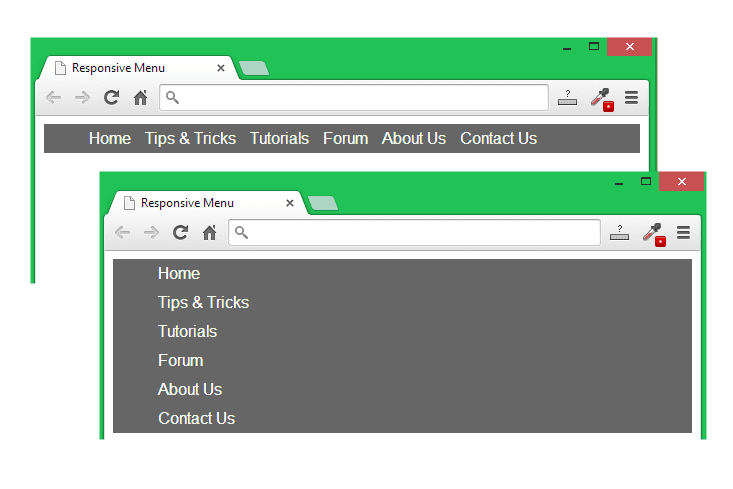
After adding the above codes into the menu.css file, save that and reload or reopen the menu.html file. Now the menu is able to response depending on the display size or the devices. Look at the image given below, there are two images- one is taken when the display size is more than 600px and the another on is taken when the display size less than or equal to 600px.
When the display size will be normal as like as a Computer Display, then the menu will work as like as all other normal menu. But if the site determine that the display size is less than or equal to 600px then the menu will appear differently as showing in the above image. Then the menu will be a Drop Down Menu.

In the next post we will add a clickable button for the menu which one will appear only when the display size will be less than or equal to 600px. And then all the menu will disappear except this button. When someone will click on that button, then the menu will be available.

Later we will add some simple JavaScript Codes to add some effect like toggle, slideToggle or sliding.

# Responsive Menu:
1. Responsive Menu 01: Basic Structure of a Website
2. Responsive Menu 02: Adding CSS to Change an Unordered List into a Menu
3. Responsive Menu 04: Adding a clickable button to the responsive menu
Feel free to contact with me for any assistance...


Wednesday, June 4, 2014

Responsive Menu 02: Adding CSS to Change the Unordered List into a Menu


In the previous post we have just created a simple unordered list. Now we will customize the list using CSS to make an effective menu. Later we will change it to a Responsive Menu that will response differently depending on different types of display size of the visitors. We will work with the existing codes we used in the previous post. Lets follow the steps given below.
css menu,slider menu,responsive menu
 Step 01  Link a CSS Stylesheet with the menu.html File
First of all open a new text file and save it as menu.css (must with .css extension), then open the menu.html file in a text editor and add the new line <link rel="stylesheet" type="text/css" href="menu.css"> before the closing </head> tag.

 Step 02  Add an Attribute id for the ul tag
Now add an attribute id with the value menu for the <ul> tag. That means the tag <ul> will be changed to <ul id="menu">. We will add this attribute id, so that we can target the unordered list to customize. I have used menu as the value of the attribute id, but you may use anything you like. Now save the html file menu.html finally.

After linking the menu.css style-sheet and adding the attribute id for the <ul> tag, the total codes will look like...

<!DOCTYPE html>
<html>
   <head>
      <title>Responsive Menu</title>
      <link rel="stylesheet" type="text/css" href="menu.css">
   </head>
   <body>
      <ul id="menu">
         <li><a href="#">Home</a></li>
         <li><a href="#">Tips & Tricks</a></li>
         <li><a href="#">Tutorials</a></li>
         <li><a href="#">Forum</a></li>
         <li><a href="#">About Us</a></li>
         <li><a href="#">Contact Us</a></li>
      </ul>
   </body>
</html>

 Step 03  Change the Background Color of the Menu
Open menu.css file in a text editor and type the following codes given below. Look I have used #menu to target the ul where we used the value menu for the attribute id. So the background color of the unordered list will be changed for the codes given below.

#menu{
   background-color: #666;
}

Save the css file and open the menu.html file in a browser. You will get a background like the image below. That means, we are succeed to target the unordered list set.
responsive menu,mobile menu,flexible menu

 Step 04  Lets Show the List in a Line
Again add some more lines after the above codes to display the list in one line. The codes you need to add is given below...

#menu li{
   display: inline-block;
}

After adding the above codes, save the menu.css file and reload the menu.html file. Now the menu will look like the image given below.

 Step 05  Lets Format the Anchor Text
Add some more codes given below to get a better look. By the codes given below, actually we will format the anchor text.

#menu li a{
   text-decoration: none;
   color: #fff;
   padding: 5px;
}

After adding the above codes into the menu.css file save that and reload the page menu.html. You will get the following change as shown in the image below.
css tricks,css menu,styling anchor text

 Step 06  More Customization to Add Some More Space
In the above image, the menu is looking too thin. That's why we will add some more space to make it more thicker by adding some padding.

padding-top: 5px;
padding-bottom: 5px;

We need to add the above two lines after the line display: inline-block;. Now save the CSS file again and reload the menu.html file, you will get the following menu given below.
mobile menu,website designing,formatting list

Finally, all the codes for the menu.css file will be...

#menu{
   background-color: #666;
}

#menu li{
   display: inline-block;
   padding-top: 5px;
   padding-bottom: 5px;
}

#menu li a{
   text-decoration: none;
   color: #fff;
   padding: 5px;
}

#Responsive Menu:
1. Responsive Menu 01: Basic Structure of a Website
2. Responsive Menu 03: Make the Menu Responsive adding Some More Codes


Responsive Menu 01: Basic Structure of a Website


What is Responsive Menu?
Responsive menu is a different type of Navigation Menu that responses differently according to the screen size of the visitor's devices. When someone will visit it in a laptop or desktop, then it will act like a normal menu. But if anyone visit it using a Tab or Mobile Phone, then the menu will be re-sized and re-designed automatically.
css menu,slider menu,toggle menu
Things you need to start
1. A text editor like Notepad++, Sublime Text, Aptana Studio, Dreamweaver or simple Notepad.
2. Zero knowledge about HTML, CSS and JavaScript.
3. But importantly you need few minutes and patience. :)

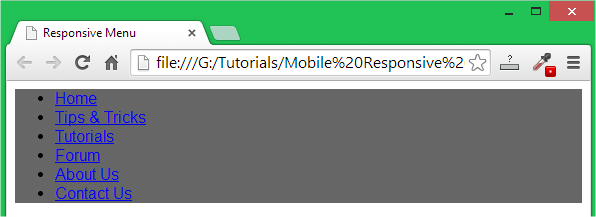
Lets see the codes given below. It's the basic structure of a simple webpage where I have added only an unordered list into the body section. The codes will create a list only as shown in the image below. Type the codes or copy and paste them into a text editor, then save that file as menu.html Finally open that .html file with a browser software. Lets know how to save a text document as an HTML file.

<!DOCTYPE html>
<html>
   <head>
      <title>Responsive Menu</title>
   </head>

   <body>
      <ul>
         <li><a href="#">Home</a></li>
         <li><a href="#">Tips & Tricks</a></li>
         <li><a href="#">Tutorials</a></li>
         <li><a href="#">Forum</a></li>
         <li><a href="#">About Us</a></li>
         <li><a href="#">Contact Us</a></li>
      </ul>
   </body>
</html>

The Codes you need

responsive menu,mobile menu,tab menu
The result of the above codes

Description of the Above Codes
<html> is the opening tag to tell the browser that it's an HTML document.
<head> is to define the header section.
<title>Responsive Menu</title> is responsible to set a title for the webpage.
</head> closing tag for the opening <head> tag.
<body> All the visible part will start after the <body> tag.
<ul> to create an Unordered List.
<li> to grab the single part of the list.
</ul> to end the Unordered List.
</body> to end the body part.
</html> to close the <html> tag.

#Next Posts:
1. Responsive Menu 02: Adding CSS to Change an Unordered List into a Menu
2. Responsive Menu 03: Make the Menu Responsive adding Some More Codes